Flyway Guide
Flyway is a lightweight database versioning and migration tool. It enables targeting specific database versions matched to the application version, performs script validation to ensure best practices are followed for consistent and safe migrations, and has tooling support in Spring Actuator to provide runtime insight into the database version and state.
Adding Flyway to a Service
Adding Flyway to a service involves setting up a "db" directory, adding a Flyway init container to your service’s dev deployment.yaml, and adding a couple Maven dependencies and application.properties config.
Running Maven FileGen
The NGSS Tiles FileGen Tile includes a Maven Goal for initializing your db directory with the necessary files for Flyway. Before running, make sure you have at least an empty db directory, as the FileGen will not create it.
Then, from the root of your service repository, execute:
|
The below commands assume a single Maven module structure. If your app is multi-module, then include, e.g. |
For Postgres:
mvn filegen:generate-flyway-scripts -DdbType=postgres
After running that, you should see some new files and subdirectories in the db directory. If your service already has SQL migration files, place them into the db/sql directory. You will likely need to alter the filename convention on existing SQL files. Reference the README.md in the SQL directory for guidance on naming.
Local Flyway Kustomize Integration
In Production, Flyway migrations are (and should be) executed manually. In the interest of maintaining parity between local development and Production, we execute Flyway locally using the same script that is used in Production and Staging (as opposed to using the Spring Flyway integration to execute migrations locally).
To execute the Flyway script locally, we add a Flyway init container to the dev deployment located at kubernetes/components/dev/deployment.yaml and we use volumes to mount the SQL scripts and the flyway_migrate.sh script. For these files to be mounted as volumes, they must be located within the kubernetes/components/dev directory (or a subdirectory). So the first step to setting up this integration is to modify your skaffold.yaml to execute the add-configmap-files.sh script that will copy these files from the db directory to your dev Kubernetes directory.
|
If the files don’t appear to be copying correctly, or if the copying errors, make sure you have the latest add-configmap-files.sh |
To automate the DB file syncing and configmap creation, add the following to your skaffold.yaml as a manifest "before" hook, just after the hook that executes setKustomizeValues.sh:
manifests:
  hooks:
    before:
    - host:
        command: ["bash", "-c", "./scripts/setKustomizeValues.sh"]
    - host:
        command: ["bash", "-c", "./scripts/add-configmap-files.sh db kubernetes/components/dev db mobile-example-service-flyway"]
    - host:
command: ["bash", "-c", "./scripts/localize.sh"]|
Be sure to replace "mobile-example-service" in the above with the name of your service. |
After adding this to your skaffold.yaml, run skaffold dev. Then go to the kubernetes/components/dev directory. You should now see that there is a db subdirectory that contains the contents or your main db directory from your repo root. You should also see a configmaps.txt file. This file should list all the configmaps that were autogenerated and added to the kustomization.yaml in the same directory.
|
Be sure to add all the new files to git! |
Now that you have the configmaps created for your DB files, you’re ready to add the Flyway initContainer to the deployment.yaml. You can begin by copy-pasting the following and then altering the names to match your service name:
spec:
  template:
    spec:
      volumes:
      - name: mobile-example-service-flyway-scripts-volume
        configMap:
          name: mobile-example-service-flyway-scripts
      - name: mobile-example-service-flyway-sql-volume
        configMap:
          name: mobile-example-service-flyway-sql
      - name: mobile-example-service-flyway-root-volume
        configMap:
          name: mobile-example-service-flyway-root
      initContainers:
      - image: dtr.mapsandbox.net/ckm/flyway:11.2.0-alpine
        name: mobile-example-service-flyway
        command: ["sh", "-c"]
        args: ["mkdir -p /app/sql && cp /tmp/scripts/wait_for_postgres.sh /app && cp /tmp/root/flyway_migrate.sh /app && cp -R -L /tmp/sql/* /app/sql && cd /app && bash wait_for_postgres.sh && bash flyway_migrate.sh"]
        env:
        - name: FLYWAY_DB_URL
          value: "jdbc:postgresql://postgres:5432/postgres"
        - name: FLYWAY_USER
          value: "postgres"
        - name: FLYWAY_PASSWORD
          value: "password"
        - name: FLYWAY_SCHEMA
          value: "example_db"
        - name: FLYWAY_OPTS
          value: "-X"
        volumeMounts:
        - name: mobile-example-service-flyway-sql-volume
          mountPath: /tmp/sql
        - name: mobile-example-service-flyway-scripts-volume
          mountPath: /tmp/scripts
        - name: mobile-example-service-flyway-root-volume
mountPath: /tmp/root|
Be sure to alter the env vars for the user, password, and schema based on your database container configuration. Also, the above is for a Postgres DB. If you’re using Oracle, be sure to change |
DB Container
If you’re using Flyway, then you’ll also have a deployment config for your database. If your service already has a DB deployment configured, and it is configured to execute the SQL migrations, then you’ll want to remove the migrations from the DB deployment patch and any other related configuration items, such as an old configmap in the kustomization.yaml. An example of a DB deployment patch:
apiVersion: apps/v1
kind: Deployment
metadata:
  name: postgres
spec:
  template:
    spec:
      volumes:
      - name: mobile-example-service-postgres-init-volume
        configMap:
          name: mobile-example-service-flyway-init
      containers:
      - name: postgres
        volumeMounts:
        - name: mobile-example-service-postgres-init-volume
          mountPath: /tmp/sql
Then in your kustomization.yaml, make sure the patch is included:
patches:
- path: postgres-deployment-patch.yaml
SQA Build Test
A final Kubernetes is still needed to make sure the Flyway init container image resolves in Staging/SQA. Since the Flyway image includes the DTR URL, you’ll need to update your kustomize overlay at kubernetes/sqa-build-test/kustomization.yaml to include the following in the array of DTR URL replacements (be sure to update the deployment name):
- select:
    kind: Deployment
    name: mobile-example-service
  fieldPaths:
    - spec.template.spec.initContainers.0.image
  options:
    delimiter: "/"
    index: 0
Spring Flyway Integration
The above steps should have Flyway executing and your DB running with all migrations applied, but you can get a little more out of it if you add the Spring Flyway Actuator to your service. To do this, follow these steps:
Add Flyway dependencies to your pom.xml:
<dependency>
    <groupId>org.flywaydb</groupId>
    <artifactId>flyway-core</artifactId>
</dependency>
<dependency>
    <groupId>org.flywaydb</groupId>
    <artifactId>flyway-database-postgresql</artifactId>
</dependency>
Add Spring configuration properties
management.endpoint.flyway.access=read_only
# Leave disabled by default and enable per environment after baselining
spring.flyway.enabled=false
spring.flyway.baseline-version=@project.version@
spring.flyway.default-schema=example_db
# Setting to non-existent DISABLE_MIGRATIONS as we do not rely on Spring Flyway to execute the migrations
spring.flyway.locations=DISABLE_MIGRATIONS
spring.flyway.validate-on-migrate=false
spring.flyway.baseline-on-migrate=false|
Only set |
Enable Flyway for Dev
Add the following to your kubernetes/components/dev/overrides.env:
SPRING_FLYWAY_ENABLED=true
Testing
If you want to verify that your Flyway integration is setup correctly, you can add the following test:
public class FlywayITCase {

    @ServiceUrl(name = "mobile-example-service-v1", port = 8081)
    static String ACTUATOR_URL;

    @Test
    public void testFlyway() throws IOException {
        RestTemplate restTemplate = new RestTemplate();

        String flywayUrl = ACTUATOR_URL + "/actuator/flyway";

        ResponseEntity<String> response = restTemplate.getForEntity(flywayUrl, String.class);

        assertThat(response.getStatusCode()).isEqualTo(HttpStatus.OK);

        String responseBody = response.getBody();

        // Assert that all migrations have state "SUCCESS" (currently using "contains" since we aren't setting the flyway baseline):
        List<String> migrationStates = JsonPath.read(responseBody, "$.contexts.mobile-example-service.flywayBeans.flyway.migrations[*].state");
        assertThat(migrationStates.stream().allMatch(state -> state.contains("SUCCESS"))).isTrue();

        // Assert that all SQL files from the directory are found in the Flyway response
        List<String> sqlFiles = listSqlFilesFromDbModule();
        List<String> executedMigrations = JsonPath.read(responseBody, "$.contexts.mobile-example-service.flywayBeans.flyway.migrations[*].script");
        assertThat(executedMigrations.size()).isEqualTo(sqlFiles.size());
        assertThat(executedMigrations.containsAll(sqlFiles)).isTrue();

    }

    static List<String> listSqlFilesFromDbModule() throws IOException {
       try (Stream<Path> files = Files.list(Path.of("../db/sql"))) {
            return files
                    .map(file -> file.getFileName().toString())
                    .filter(file -> file.endsWith(".sql") && file.startsWith("V"))
                    .collect(Collectors.toList());
       }
    }
}
Running Flyway Migrations in Staging and Prod
In Staging and Prod, Flyway migrations will be manually kicked-off by an admin. Requests to run migrations are made through Jira tickets. To create the Jira ticket, you can either use the "DB Task" automation or clone an existing ticket.
To create the DB task using automation, go to an existing Jira ticket and click the More button:
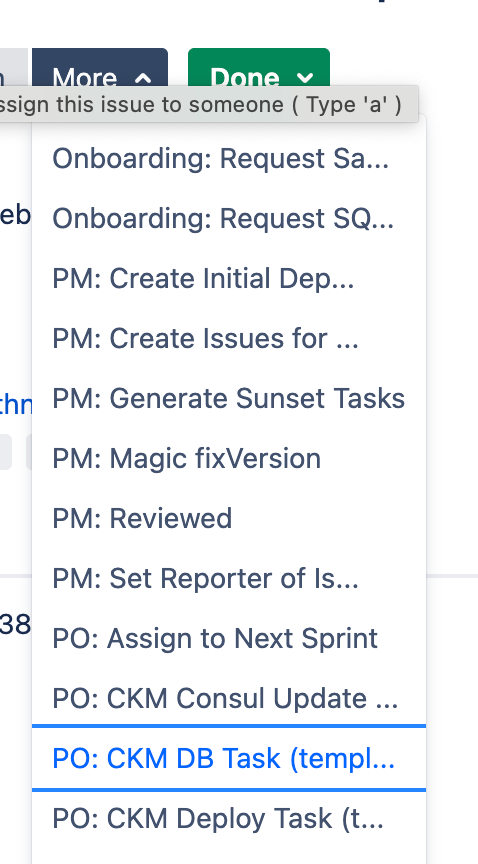
After cloning or generating the DB task, you can fill it out with some standard Flyway steps. An example Flyway ticket:
*Fill in the following information and assign to [~wildsk] when ready:*

*Component/Service:* mobile-example-service

*Environment (SQA/PROD):* PROD

*Associated Database:* Postgres

*Collection or Schema:* vhamapprdapp_exampledb

*SQL for execution:* Flyway migration. The SQL script execution is managed by Flyway. See steps below under "Additional Instructions".

*Supporting Scripts:* YES

*Script location (Codrepo URL):* [https://coderepo.mobilehealth.va.gov/projects/CKM/repos/mobile-example-service/browse/db]

*Impact of change:*
 # Will create the example table.

*Additional instructions/information:*

Steps to follow:
 # Checkout/update the main branch: [https://coderepo.mobilehealth.va.gov/projects/CKM/repos/mobile-example-service/browse]
 # It is necessary for the Java trust store on your host to trust the certificate presented by the RDS instance during the TLS handshake. If not previously executed on the host, or if you are unsure, execute the following from the root of the repo:
{code:bash}
./db/install_rds_ca.sh {code}

 # Execute the following from the root of the repo:
{code:bash}
./db/flyway_migrate.sh --target 1.21.0 --schema example_db --url "jdbc:postgresql://example.us-gov-west-1.rds.amazonaws.com:5432/example_db?ssl=true&sslmode=verify-full" {code}|
If this is the first Flyway migration being run for an existing database that has had prior migrations run, you MUST run a Flyway baseline. This can be done by including a baseline version (the version of the latest SQL migration that was previously run): ./db/flyway_migrate.sh --baseline 1.19.0 --target 1.21.0 --schema example_db --url "jdbc:postgresql://example.us-gov-west-1.rds.amazonaws.com:5432/example_db?ssl=true&sslmode=verify-full" |
And finally, once you have run baselines in Staging and Prod, don’t forget to go back and set SPRING_FLYWAY_ENABLED=true in those envs or to set spring.flyway.enabled=true in the application.properties.